
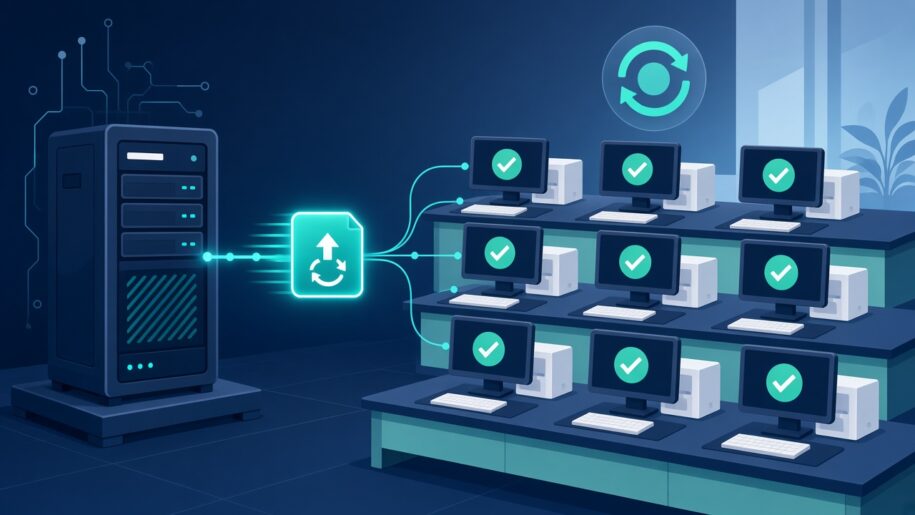
Mid-semester is when software updates hurt most. A lecturer needs a newer version of an application next week, a security patch lands, and a lab full of shared PCs is booked from morning to evening. Updating machines one by one means long nights and labs that drift out of sync. This guide is for the lab technicians who keep campus labs running: how to roll out updates once with CloudDesk vDesk, and how to check the result with CloudDesk vDash.
Why per-PC updates break down in shared labs
- Every PC becomes its own project. Installing on each machine separately takes time and leaves room for missed PCs.
- Labs drift apart. Over a semester, PCs in the same room end up with different versions, settings and leftovers from earlier users.
- Labs are rarely free. Updates have to fit around classes, exams and open-lab hours.
- It is hard to prove it worked. After a rollout, someone still has to confirm which machines are healthy and actually running the new software.
How vDesk changes the update routine
vDesk is a desktop virtualization and management platform. The operating system, application software, policies and data are stored centrally on the vDesk server, and lab PCs get them from that server. For a lab technician, that changes updates in four ways:
- Patch once, deploy to all. New software, patches and upgrades are installed centrally once and deployed to all machines.
- Golden images per lab. You can capture multiple “golden images” and provision them to different machines or rooms depending on what each lab needs. See our guide on vDesk golden images for university labs.
- No reinstall on the client. PCs connect to the server through PXE boot, and the server delivers the OS and apps without formatting or installing them on the client machine, so clients get the OS and apps in minutes, even without a hard drive.
- A clean start on every restart. Machines can be set to reset on every restart, so every user gets a clean environment and leftover changes do not build up between classes.
A simple mid-semester update routine
- Collect the requests. List the application updates and patches lecturers and IT security have asked for, and which labs need them.
- Check real usage first in vDash. Use vDash to see which departments actually use each licensed app, and when. This tells you which labs really need the update and which quiet periods are best for the change.
- Update the image centrally. Apply the new software or patch once on the vDesk server, in the golden image for the labs that need it.
- Roll it out to the right rooms. Provision the updated image to the machines or rooms that need it. With reset on restart, PCs pick up the clean, updated environment when they restart.
- Keep teaching going. vDesk’s offline access means users can continue working even if the network connection goes down.
- Verify in vDash. Confirm the rollout using the checks below.
Verify the rollout with vDash
vDash gathers usage statistics from users, machines and applications and shows them on an online dashboard. After an update, lab technicians can use it to:
- Spot machines that need attention. The live machine inventory shows stale, offline or incomplete PCs at a glance, and the dashboard shows which labs are busy, idle or offline.
- Follow one app across the campus. Click-through navigation lets you drill down from machine to user to apps, or see every machine running an app.
- Confirm the update is being used. Usage by user and department shows which departments are using each licensed app after the change.
- Keep the register right. Export the app or machine inventory in one click, or bulk-import assets from a spreadsheet, so versions and departments stay accurate.
- Share results by department. Department heads can see their own machine and app usage, while IT admins keep the campus-wide view.
For more on reading the numbers, see How Universities Measure Computer-Lab Usage and Reading Licence Peaks: Concurrent Use vs Installs.
Remote help between classes
When a single PC still misbehaves after an update, vDesk lets the IT manager take remote control of the desktop, and a restart brings the machine back to a clean environment. Combined with the vDash view of offline or incomplete PCs, technicians can find and fix problem machines without walking every row of every lab.
Quick checklist for lab technicians
- Updates and patches listed, with the labs that need them
- Usage checked in vDash before choosing labs and timing
- Change applied once to the right golden image on the vDesk server
- Updated image provisioned to the right machines or rooms
- Reset on restart enabled for shared PCs
- Offline, stale or incomplete PCs checked in vDash after the rollout
- App usage by department checked after the change
- Inventory export updated for the asset register
Getting a lab ready for a new term? Our semester-start lab readiness checklist covers the steps before classes begin.
Frequently asked questions
Do lab PCs need software installed locally to receive updates?
No. With vDesk, the OS and apps are stored on the vDesk server and delivered to client PCs through PXE boot, without formatting or installing them on the client machine.
Can different labs run different software?
Yes. You can capture multiple golden images and provision them to different machines or rooms depending on usage requirements.
Does vDesk work with our directory?
vDesk can be integrated with the server’s Active Directory environment, so multiple users can use a single vDesk image without duplication issues.
How is it priced?
CloudDesk is offered as a per-PC annual subscription. vDash also has a free 2-week pilot so you can see your own lab data first.
See your labs before your next update
Start with a free 2-week vDash pilot to see which labs, machines and apps really need attention, or book a 30-minute vDesk demo to see centralised updates in action.